

Documentation Index
Fetch the complete documentation index at: https://docs.supatest.ai/llms.txt
Use this file to discover all available pages before exploring further.
Features
Scenarios (Table-Driven Tests)
Scenarios (Table-Driven Tests)
Run the same test case with multiple data variations using scenarios. Define data rows, use variable interpolation in steps, and execute comprehensive test coverage without duplicating test cases.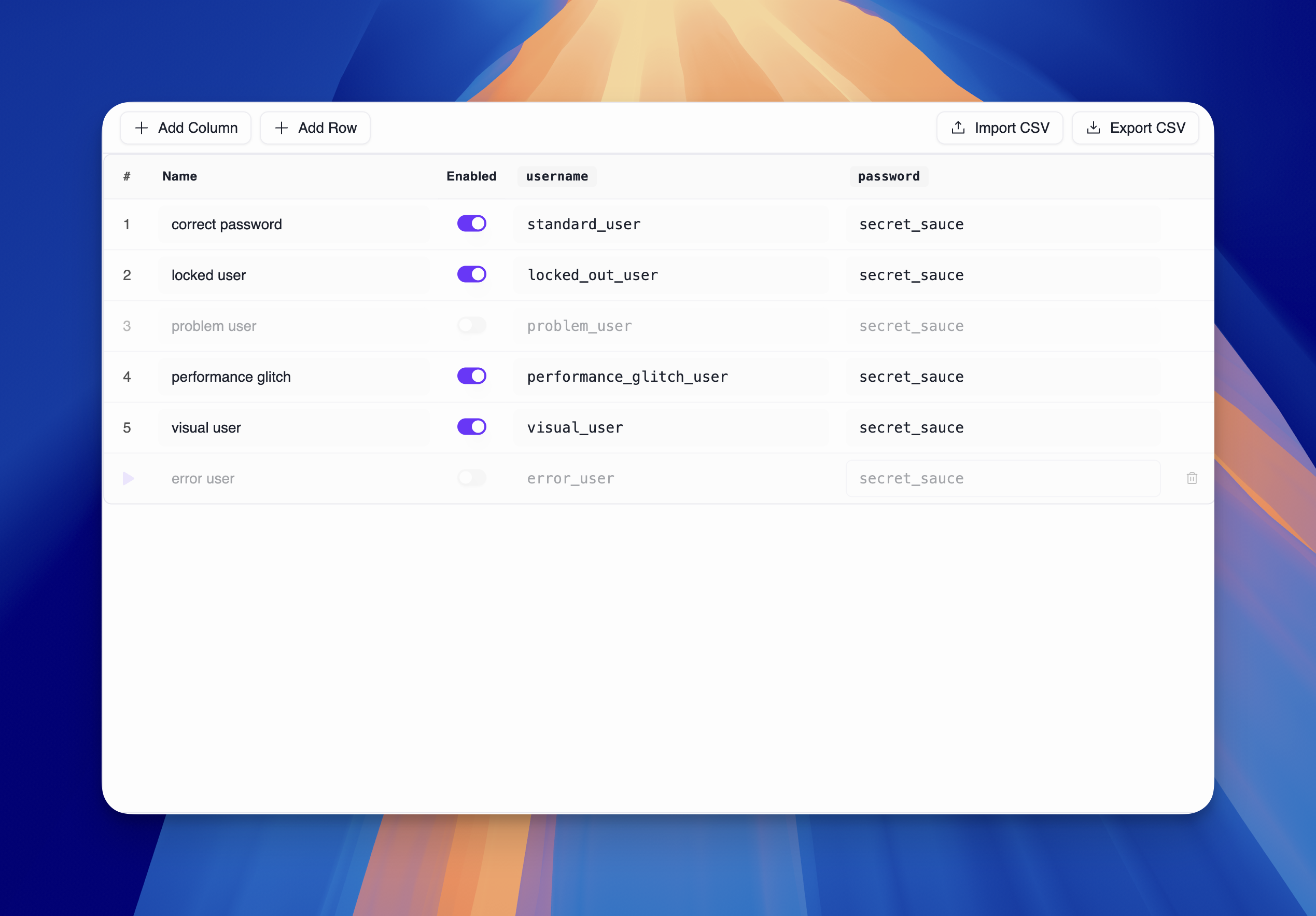
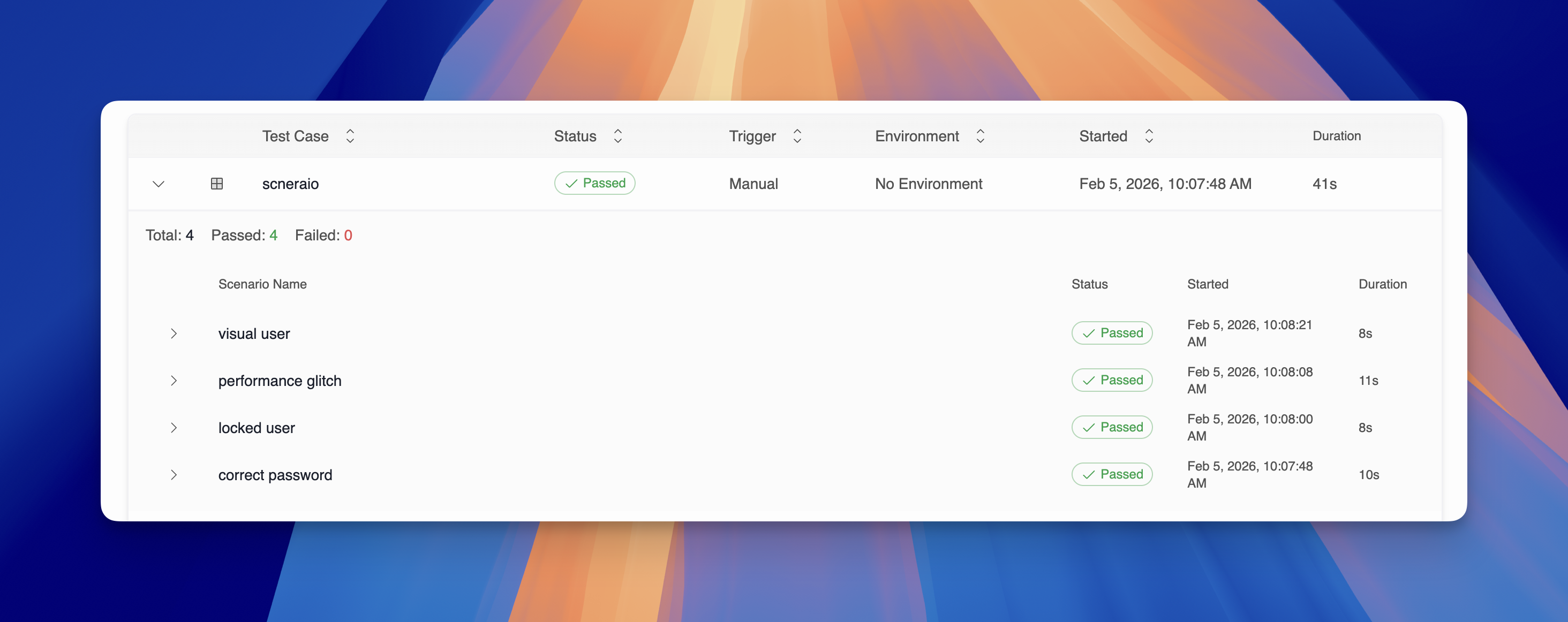
- Data-driven testing - Define multiple data rows for each test scenario
- Variable interpolation - Use
{{scenario.columnName}}syntax in test steps - Scenario execution - Run individual scenarios or all scenarios at once
- Results tracking - View scenario run results with row-level pass/fail status
- CSV import/export - Bulk import scenario data from CSV files
- Expression support - Use expressions in scenario data for dynamic values
Grouped Runs
Grouped Runs
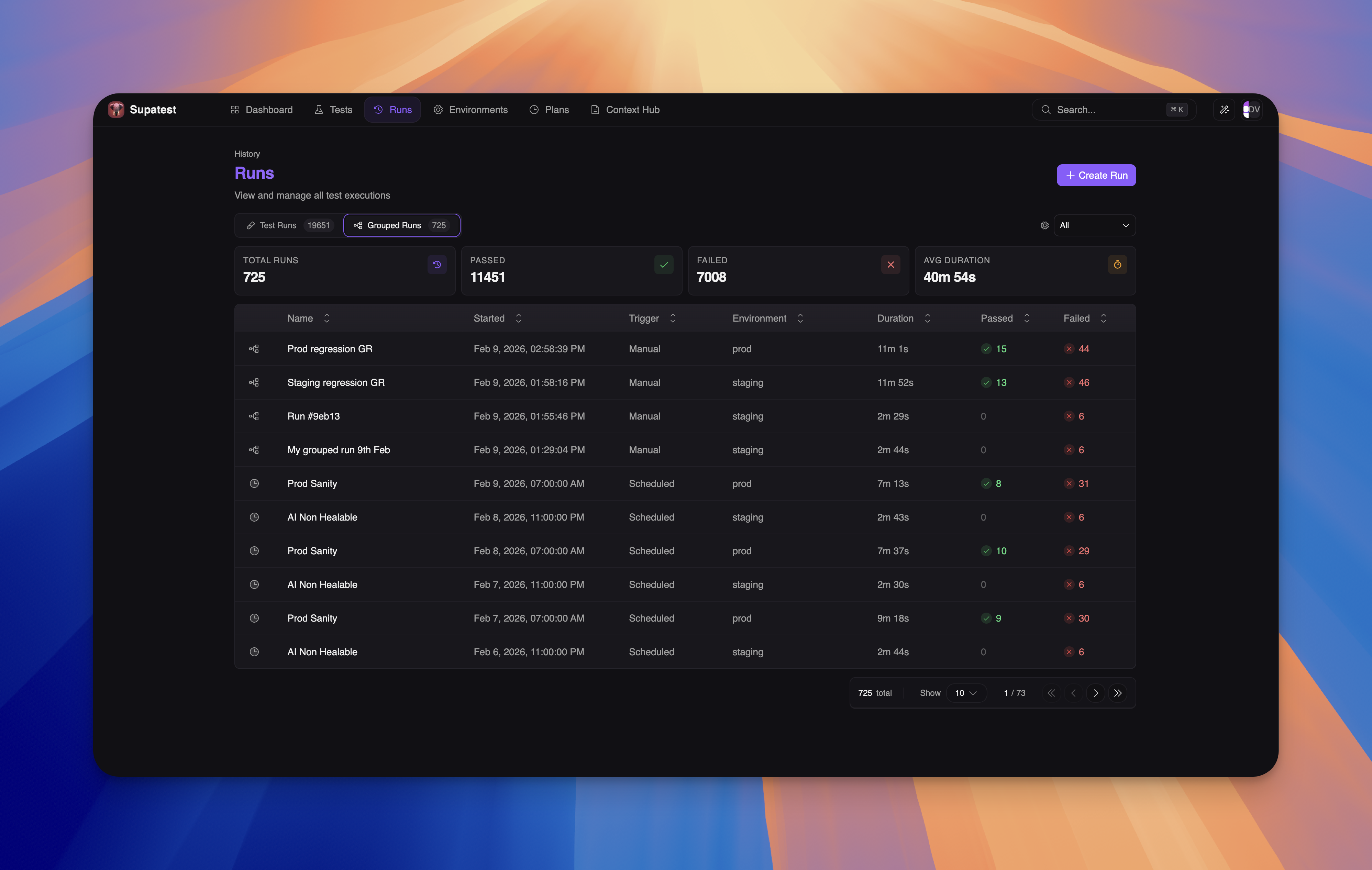
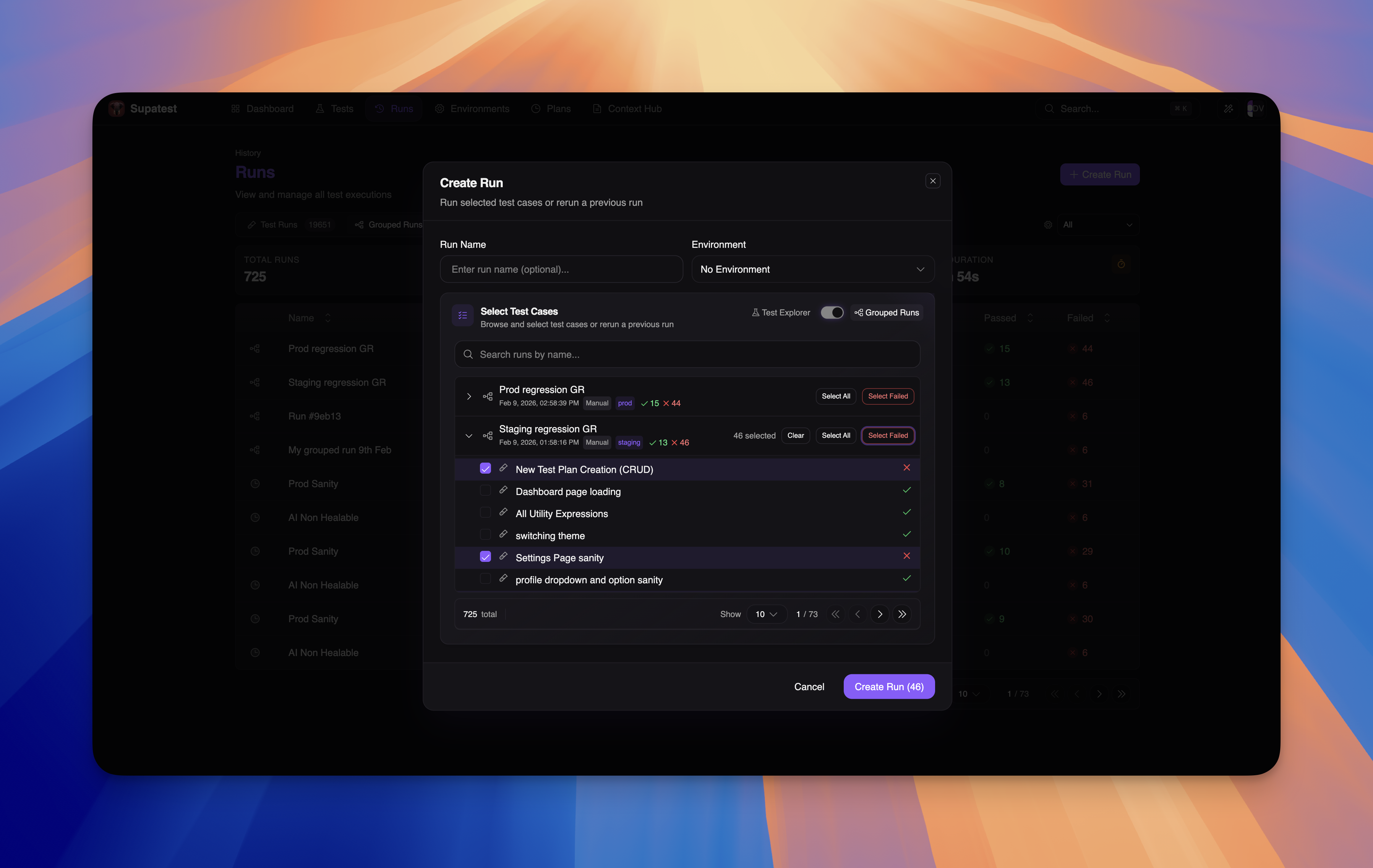
Create and execute test runs on-demand. Pick any combination of test cases from your Test Explorer or reuse selections from previous runs - including scheduled test plan runs.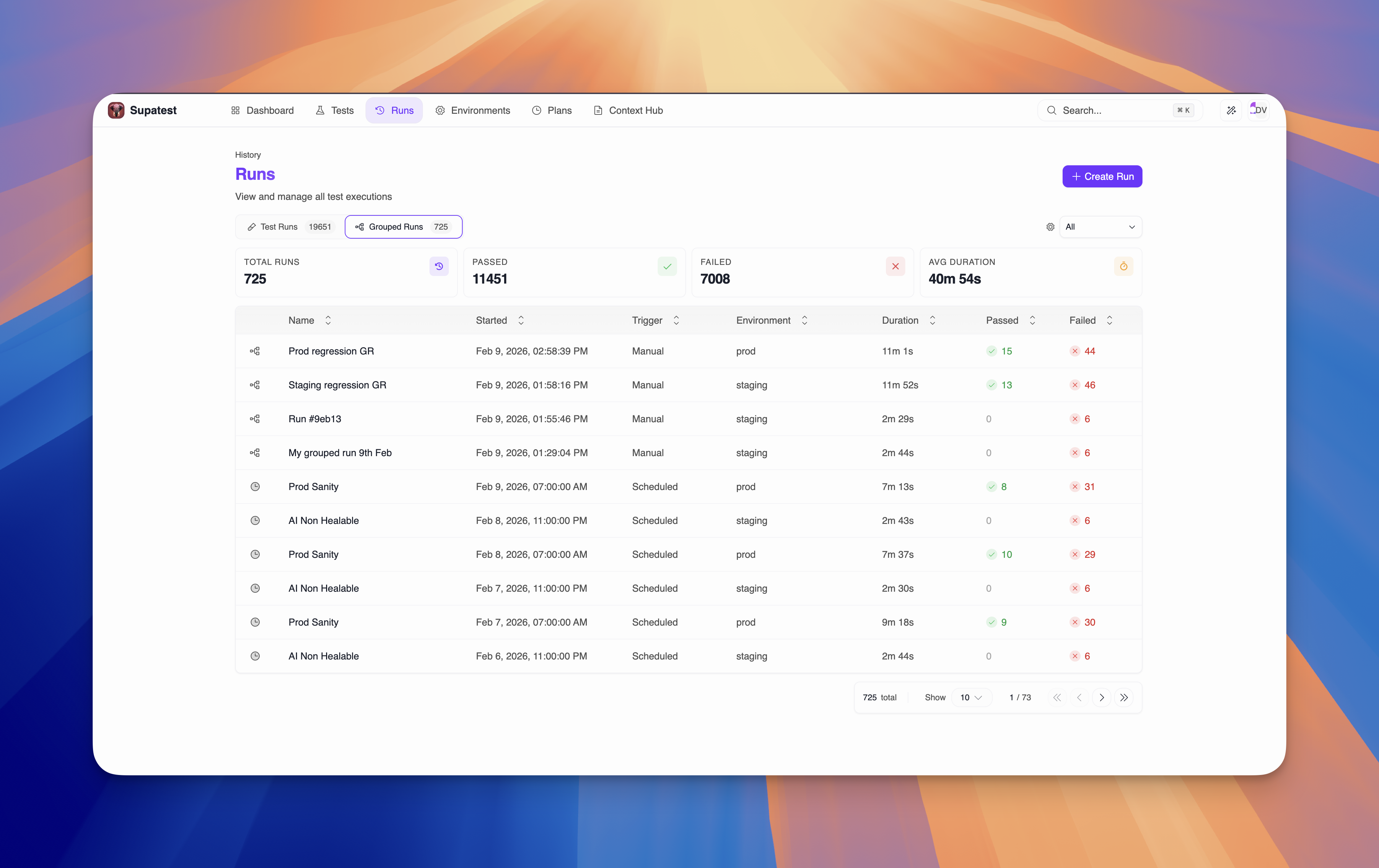
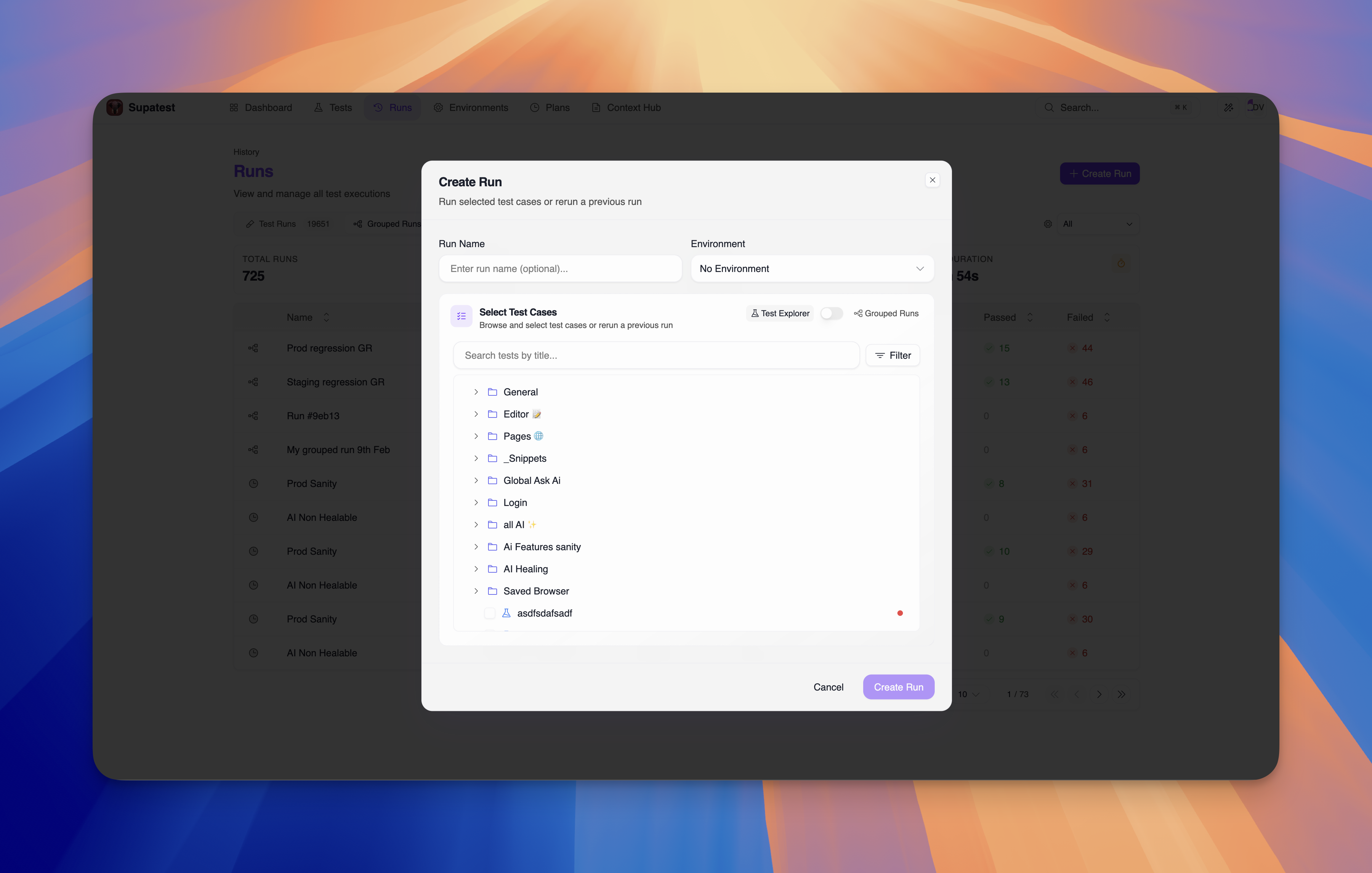
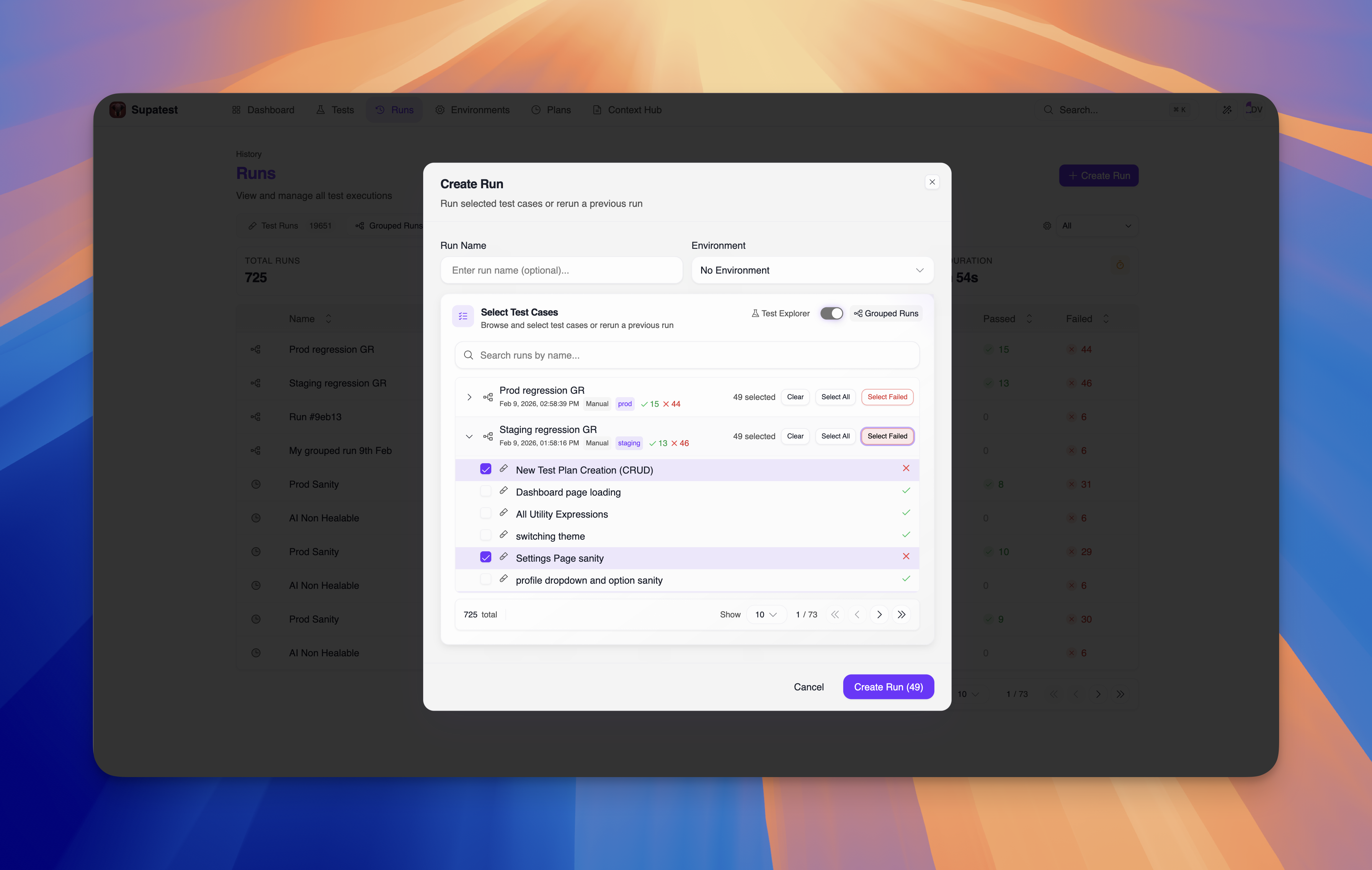
Create Run Dialog
The new Create Run dialog gives you full control over what to execute: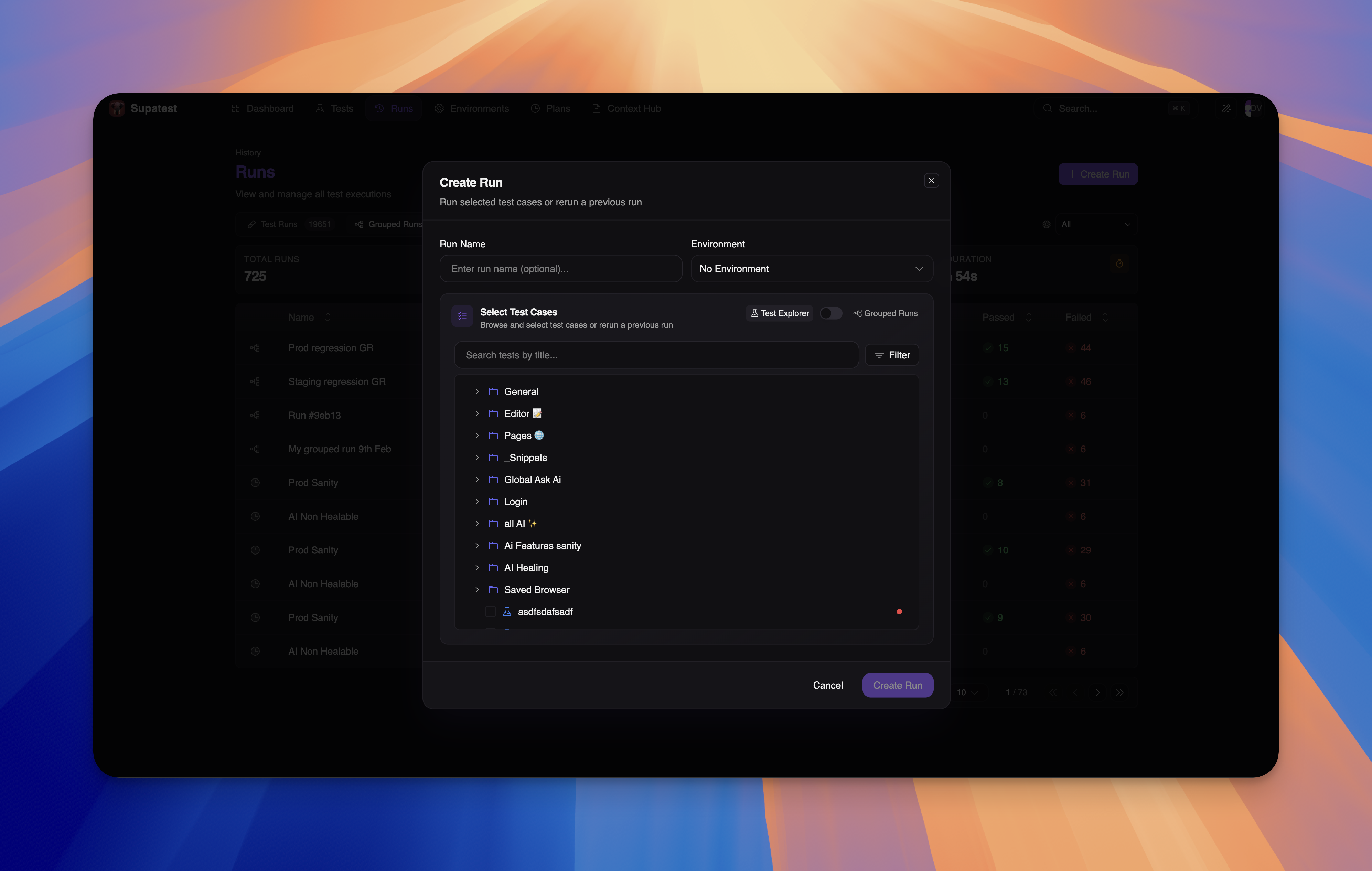
- Test Explorer Mode - Browse your folder structure and pick individual tests or entire folders
- Grouped Runs Mode - Select from previous runs, including scheduled test plan runs
- Quick selection buttons - “Select All” and “Select Failed” for efficient test selection
Run Details & Analytics
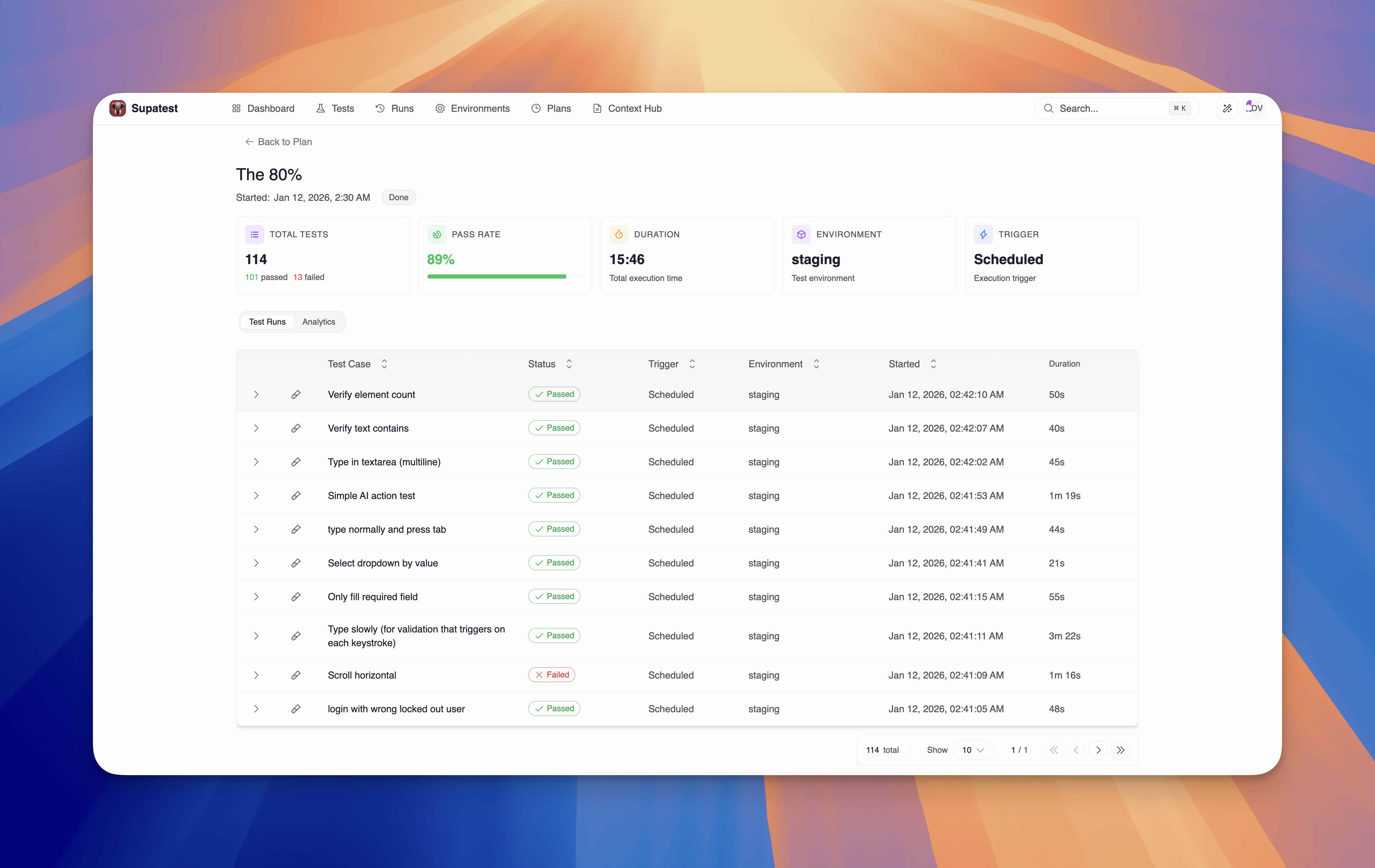
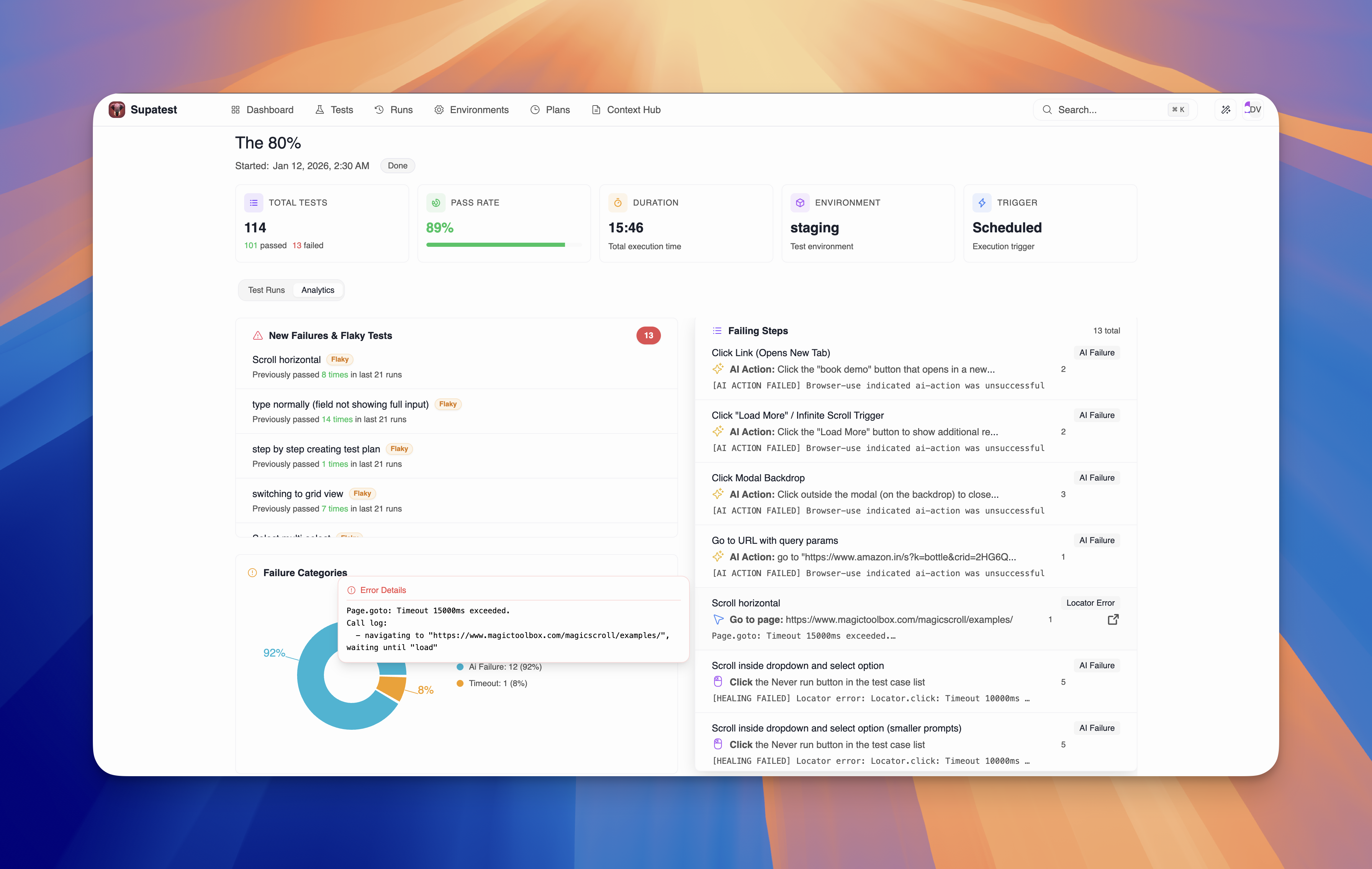
Click any grouped run to view detailed results and analytics: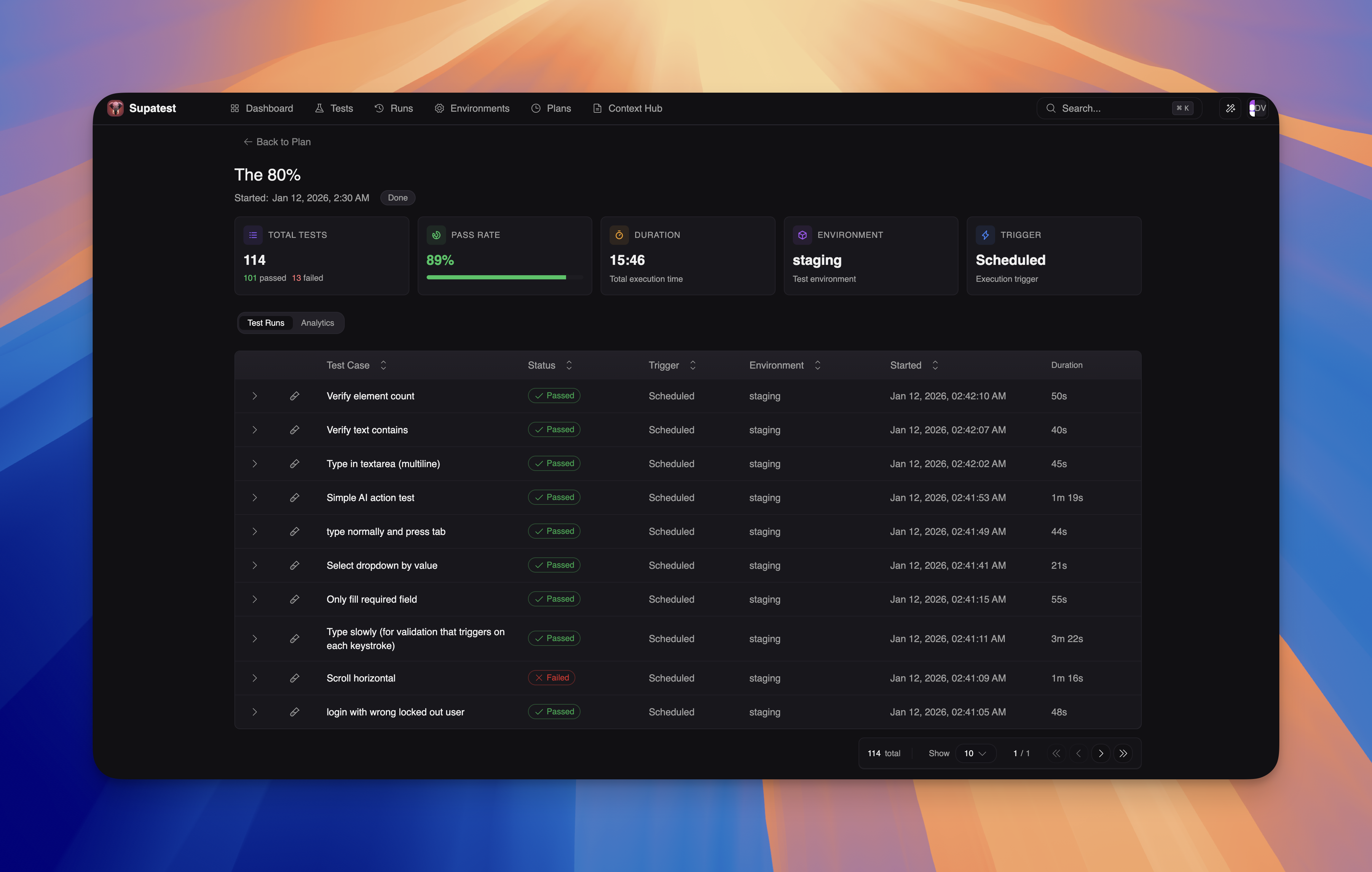
- Summary cards - Total tests, pass rate, duration, environment, and trigger type
- Test Runs tab - View every test case with sortable columns
- Analytics tab - Deep insights with new failures, flaky tests, failure categories, and failing steps
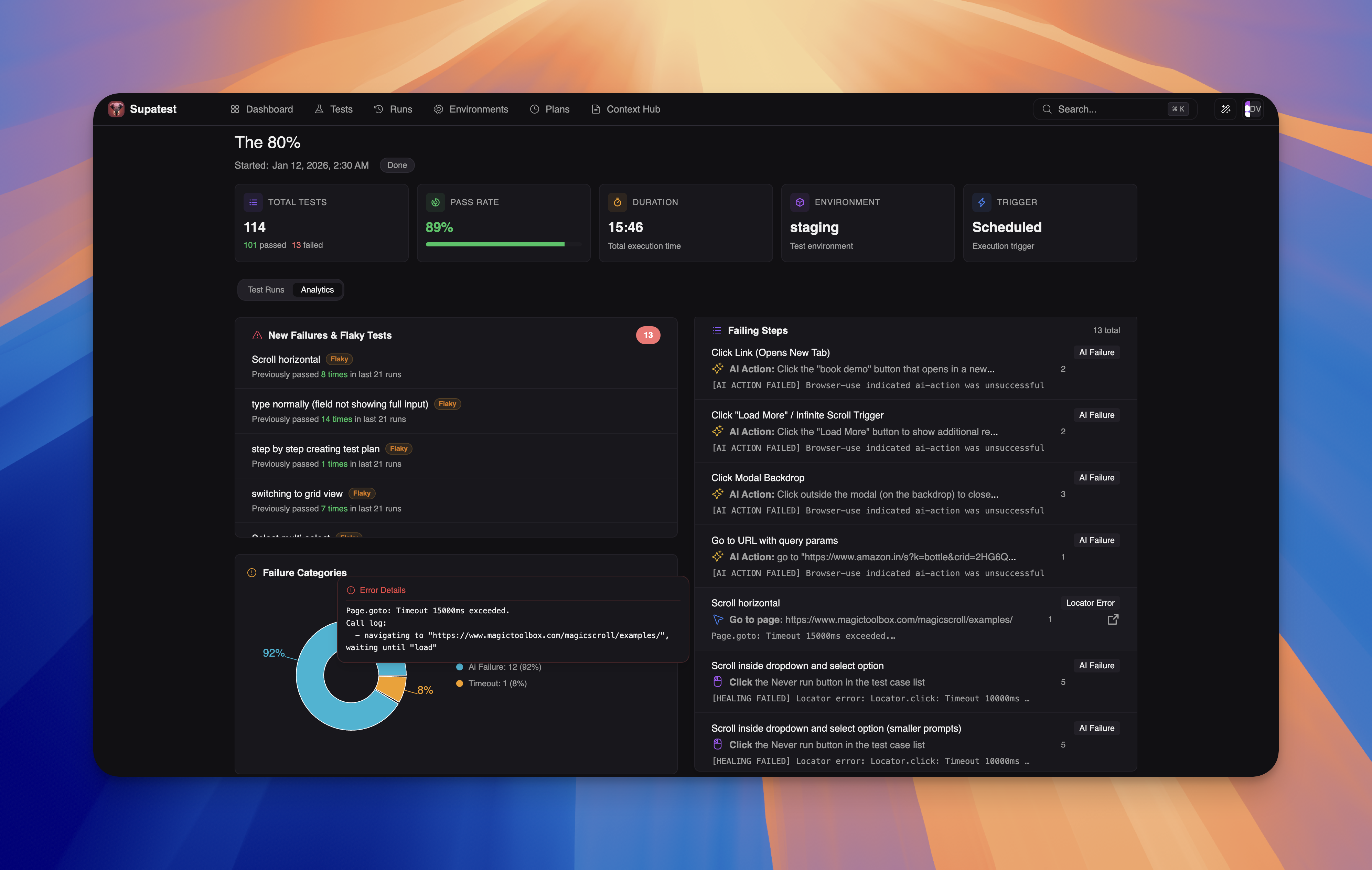
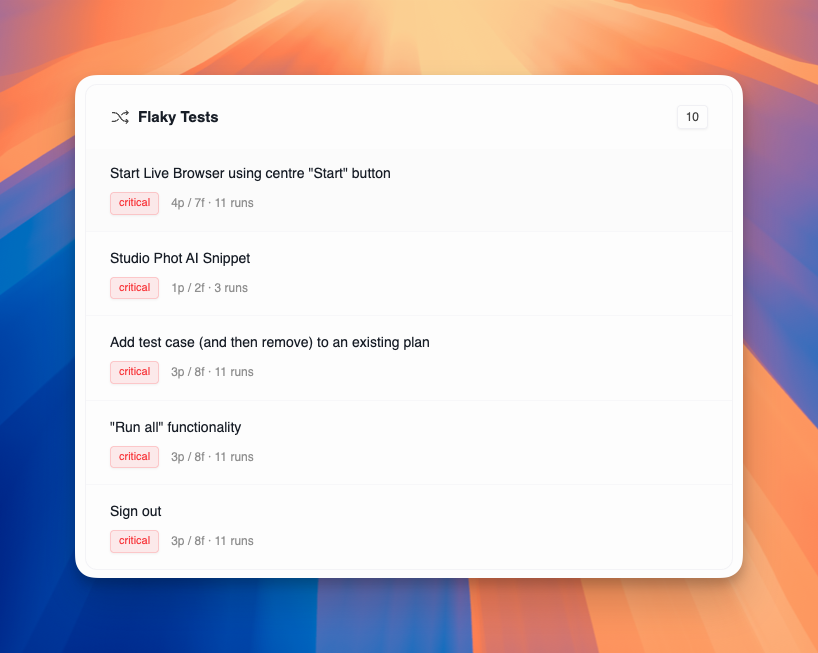
- New Failures & Flaky Tests - Tests that failed in this run but passed previously
- Failure Categories - Donut chart showing failure type distribution
- Failing Steps - Detailed breakdown of every failing step across all tests
Enhanced Analytics Dashboard
Enhanced Analytics Dashboard
A completely redesigned dashboard with organized tabs, new visualizations, and deeper insights into test health and failure patterns.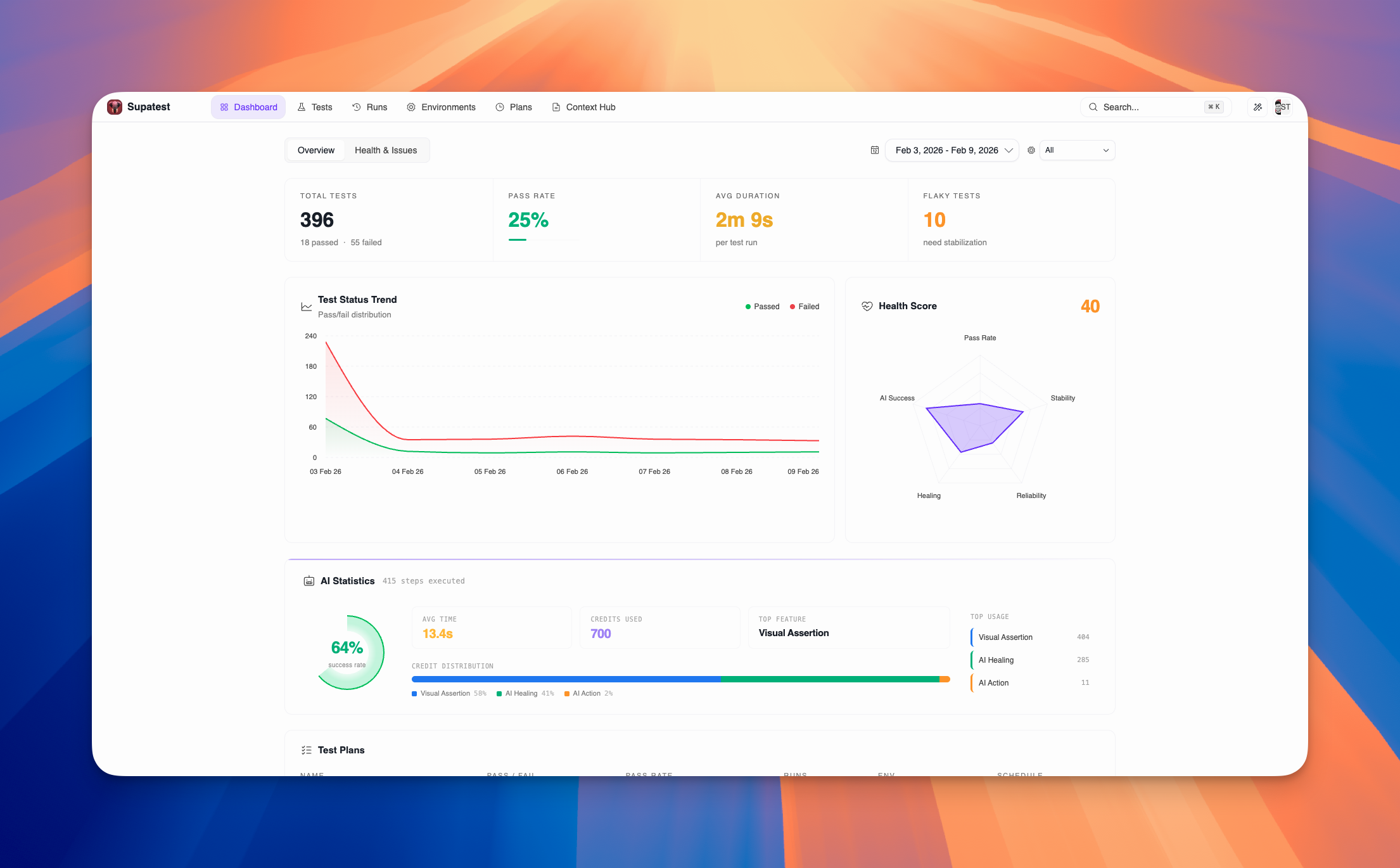
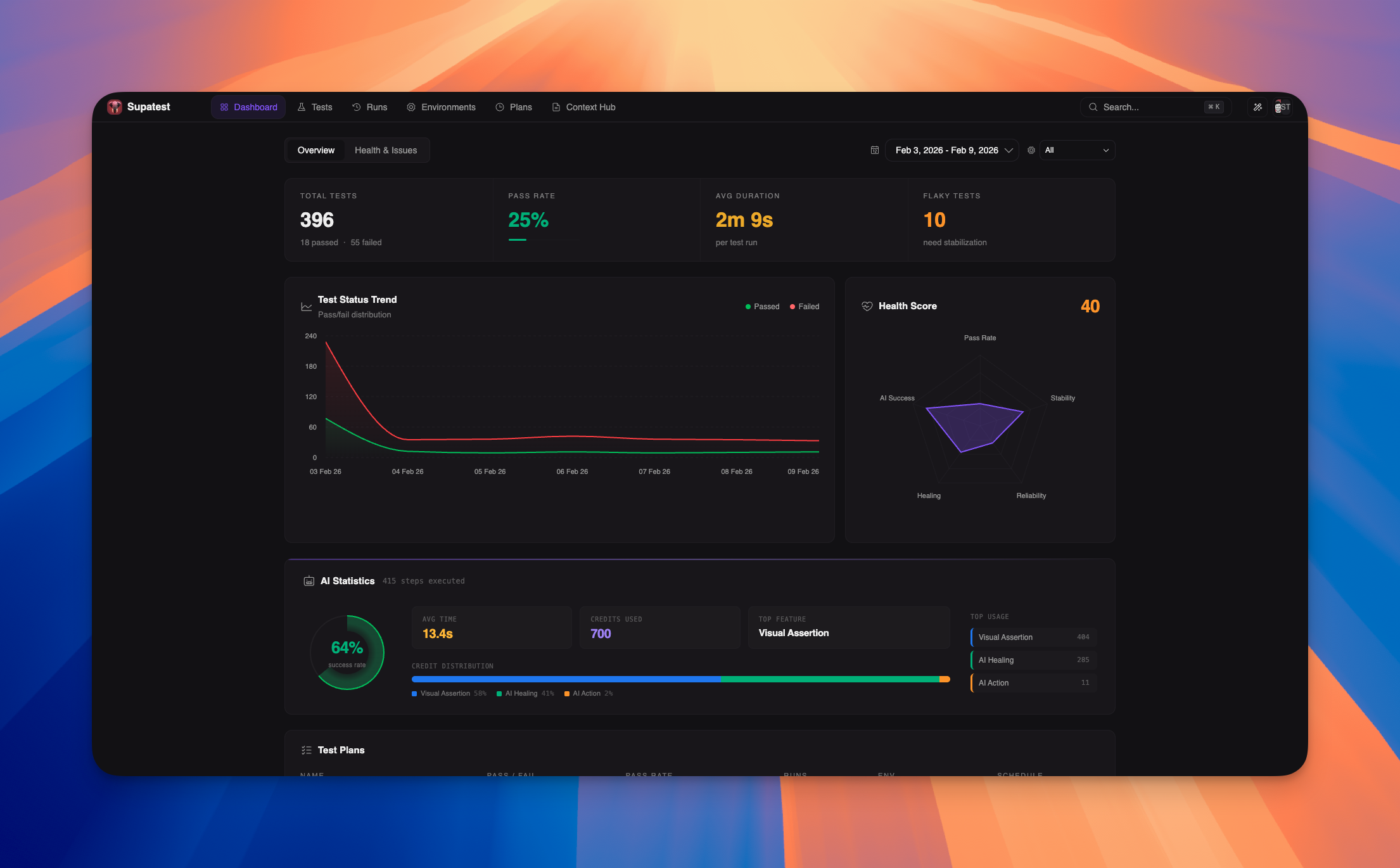
Overview Tab
- Test Health Radar - Visual representation of reliability, flakiness, and other health metrics
- Run Volume Chart - Track test execution trends over time
- Executive Summary - High-level metrics and key performance indicators
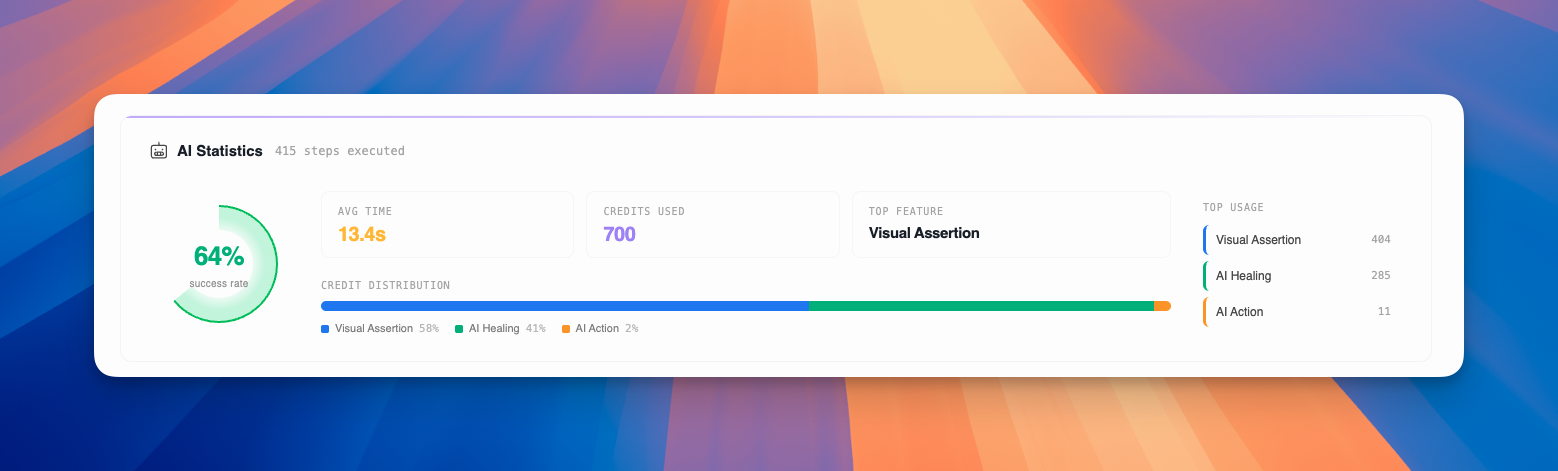
- AI Statistics - Comprehensive stats on AI-powered actions, assertions, and healing
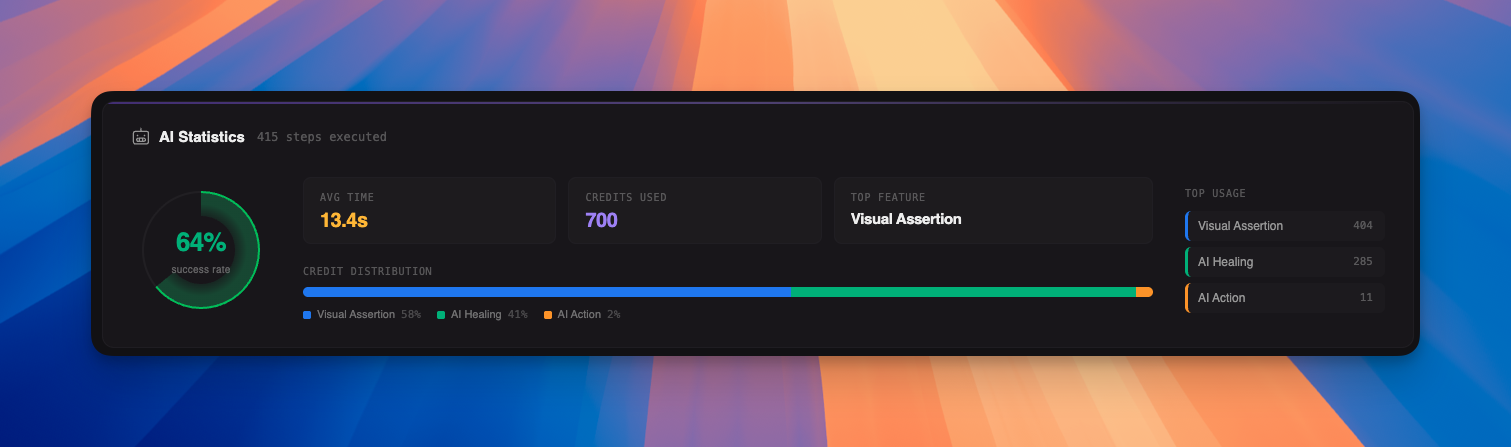
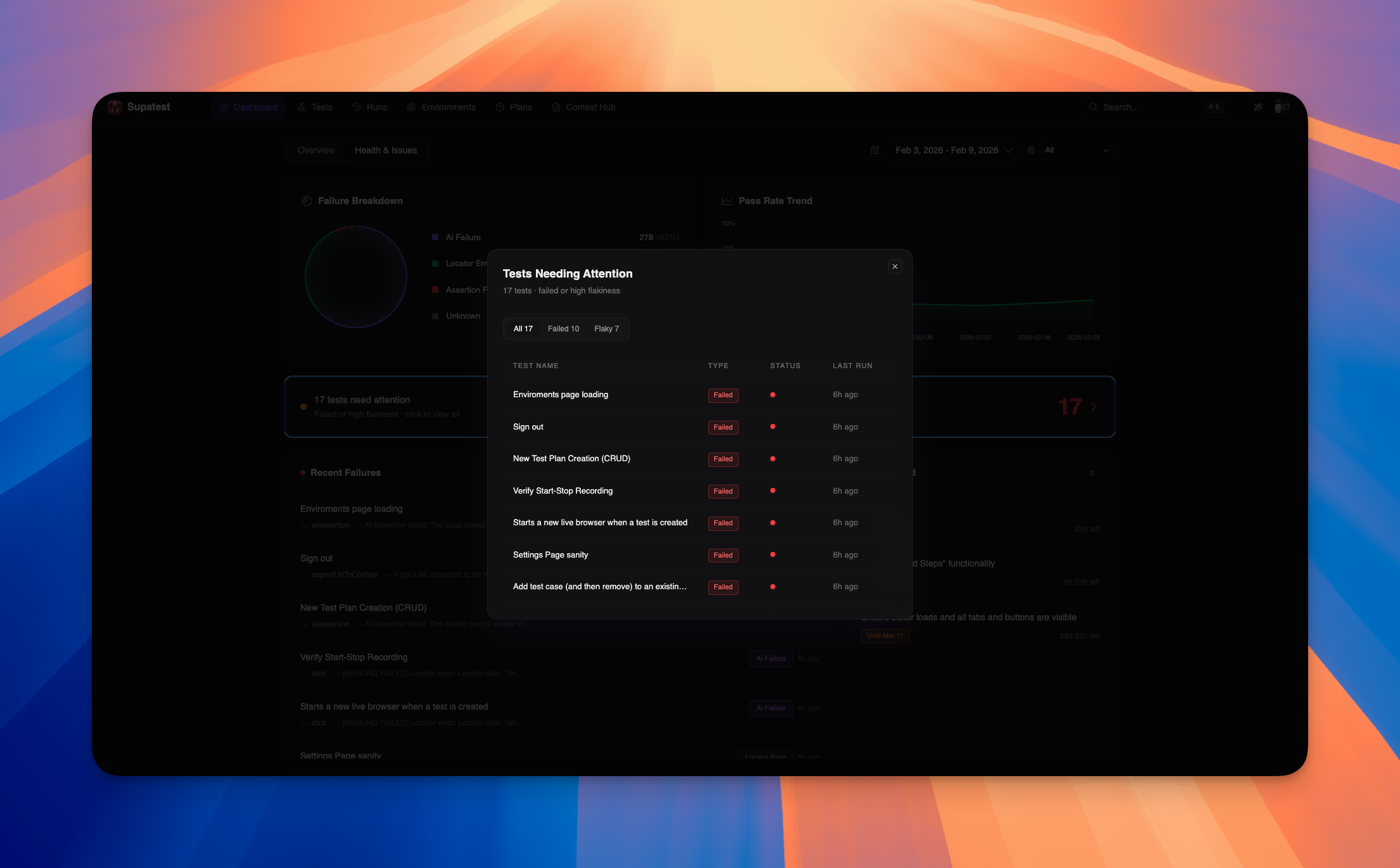
Health & Issues Tab
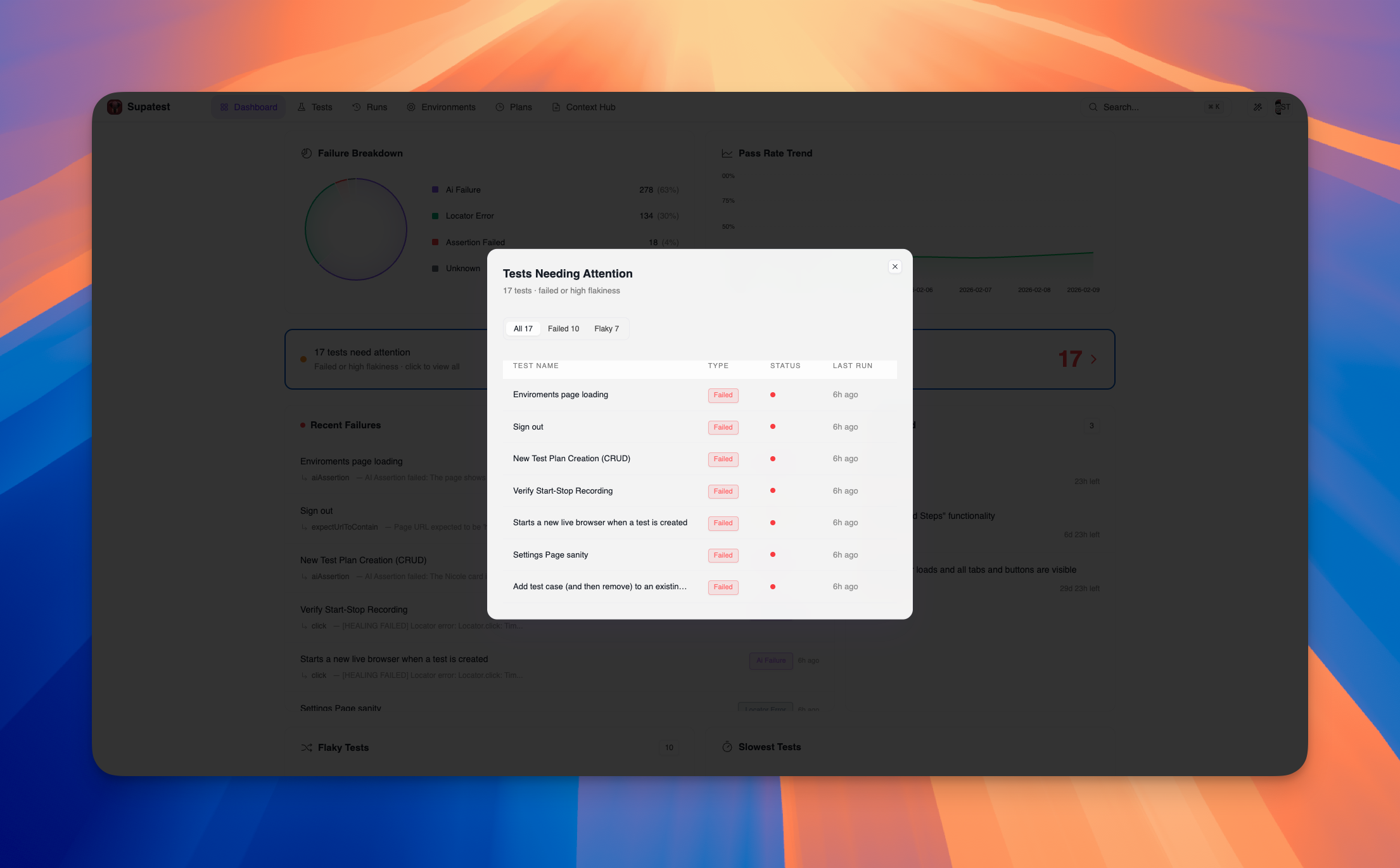
- Failing Steps List - Detailed breakdown of steps causing failures
- New Failures Section - Track newly introduced failures in recent runs
- Snoozed Tests - View and manage snoozed test cases
- Healed vs Unhealed - Visualization of AI healing effectiveness
- Improved Failure Categories - Enhanced categorization with better color coding
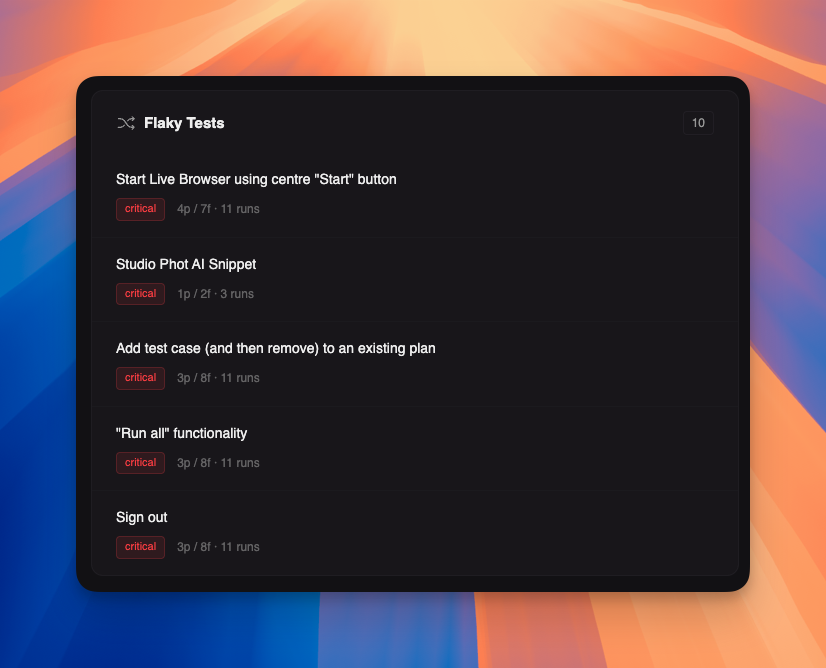
- Gradient styling - Beautiful gradients on pie and ring gauge charts
- Tooltips - Enhanced tooltips with detailed descriptions on radar charts
Test Case Settings
Test Case Settings
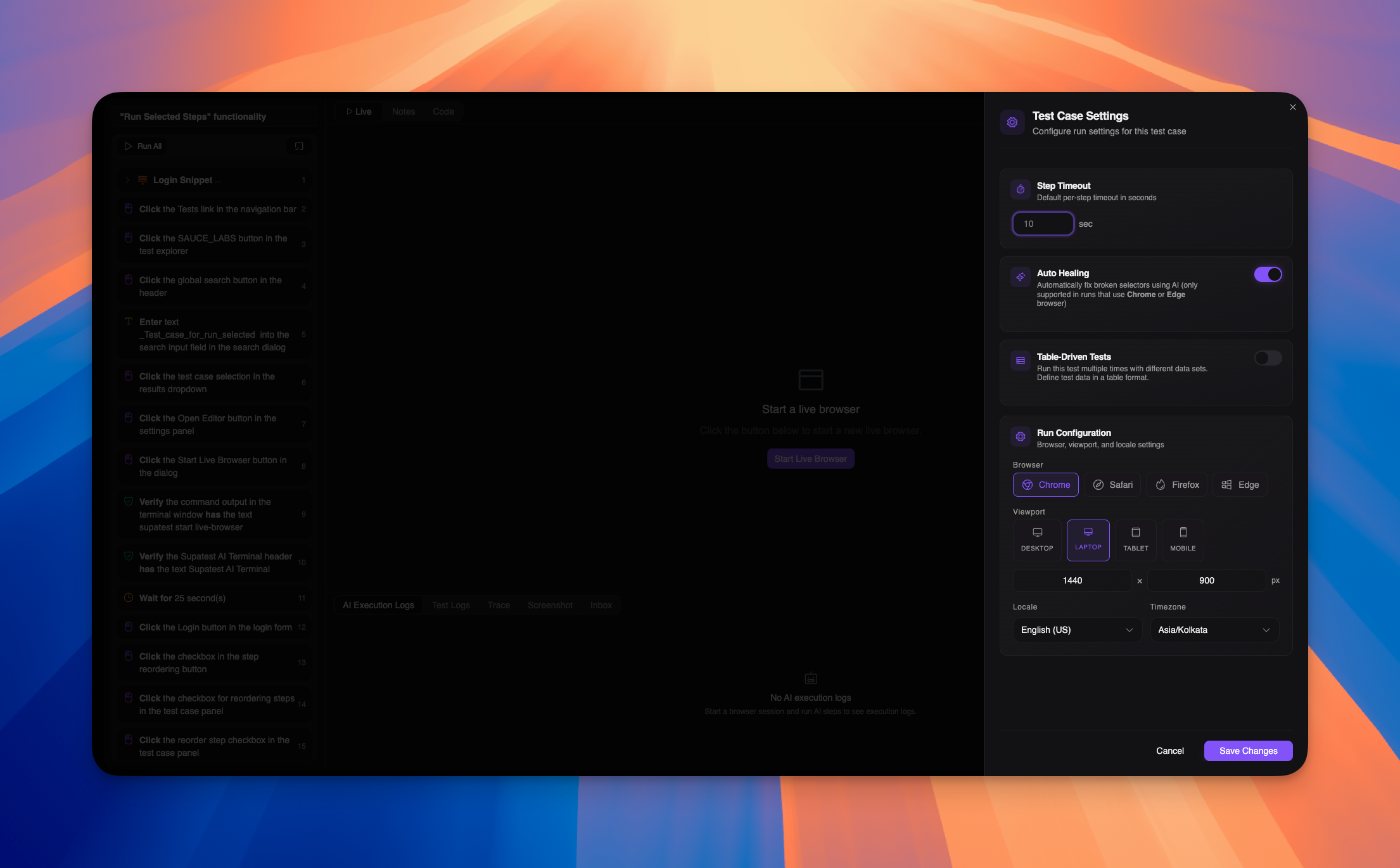
Configure test case-specific settings directly from the editor, including timeout values, browser selection, and other execution parameters.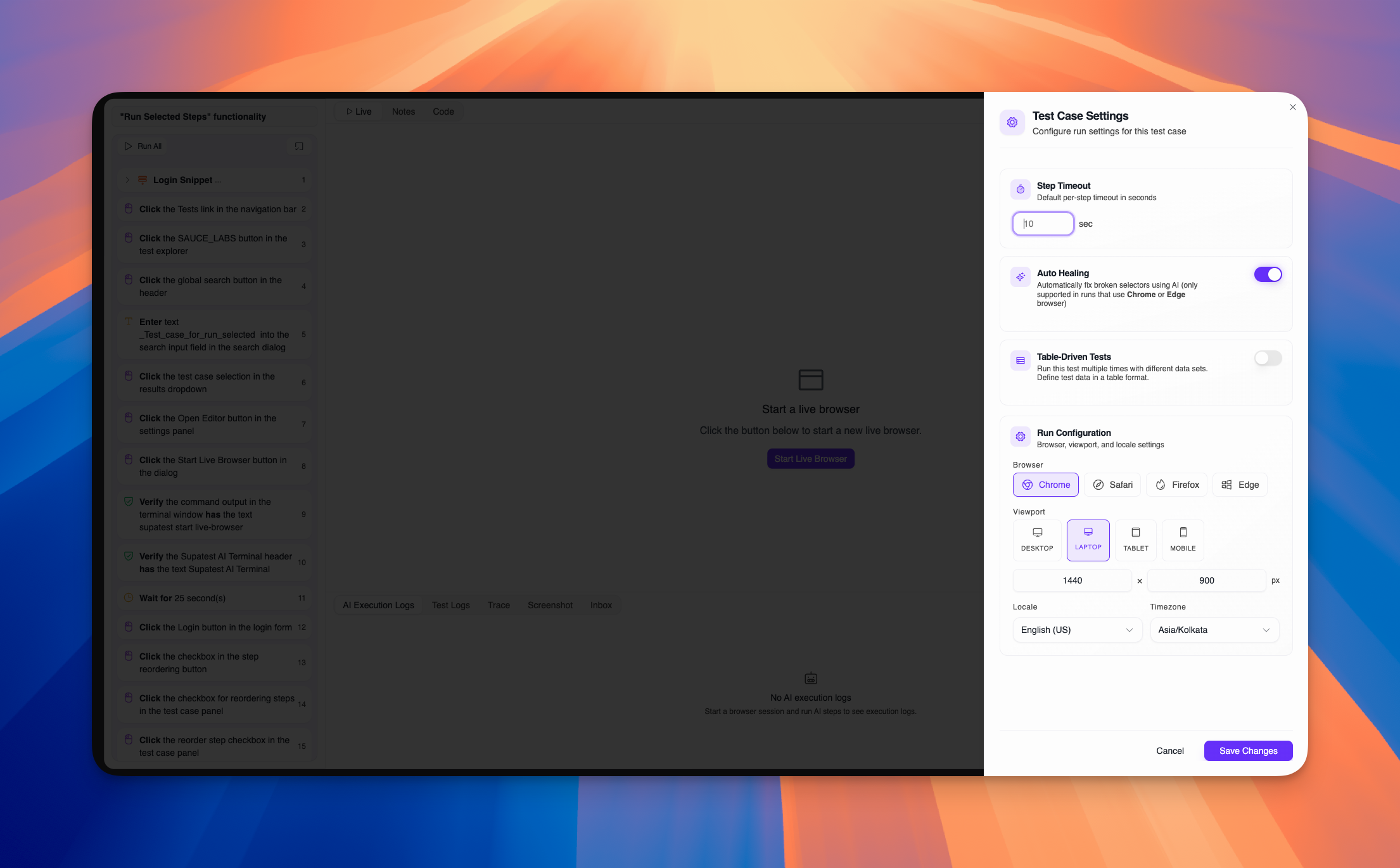
- Quick access - Settings button in test case header
- Step timeout - Set custom timeout duration per test case (up to 300 seconds)
- Auto healing - Enable AI-powered selector healing (Chrome and Edge only)
- Browser selection - Choose between Chrome, Safari, Firefox, or Edge
- Viewport configuration - Set custom viewport size or use presets (Desktop, Laptop, Tablet, Mobile)
- Locale settings - Configure locale for the test run
- Timezone settings - Set timezone for test execution
- Clean UI - Sheet-based dialog for organized settings management
Improvements
- Unified Runs Table - Test runs and scenario runs now displayed in a single, unified table with run type icons
- Improved Filters - Better UX with inline chips, reset button, and cleaner filter popover design
- Clickable Toggle Labels - Toggle labels in create run modal are now clickable for better usability
- Scenario Variable Autocomplete - Autocomplete support for scenario variables in expression fields
- Column Resizing - Scenario table columns are now resizable with drag handles
- Compact Expanded Rows - Scenario expanded rows are more compact to show more data
- Run Type Icons - Visual indicators distinguish between test plan runs, ad-hoc runs, and scenario runs
- Environment Indicator - See the target environment in last run data tabs
- Better Error Messages - Error toasts now display when ad-hoc run creation fails
- Pagination - Grouped runs tab now has pagination for large datasets
- Total Duration Display - Scenario runs show total duration instead of average
- Dark Mode Enhancement - Dark mode is now darker for better contrast